Finals week turned the aesthetic Mac setup into a survival tool
There is a very specific genre of MacBook setup taking over study TikTok and Pinterest right now: the finals week desktop. Not the ultra-generic "productive student" screen with twelve widgets and a fake Notion life dashboard. I mean the setup that looks cute enough to post, but is mostly built around one question: how do I stay calm and finish everything on time?
That shift makes sense. Late May is peak "I have three deadlines, two iced coffees, and one last functioning brain cell" season for a lot of students and early-career Gen Z workers. When your laptop is where your notes, tabs, lecture slides, Google Docs, and panic all live at once, the way your Mac looks stops being just decoration. It becomes part of your nervous system.
The best finals week MacBook setups all do the same three things well:
- show time pressure without being stressful,
- reduce visual chaos,
- make starting the next study block feel frictionless.
If your screen currently looks like a digital junk drawer, this is the glow-up that actually helps.
1. Put the countdown in the vibe, not in your face
The finals desktop trend is basically the softer cousin of the old productivity wallpaper. Instead of giant red deadline text screaming at you, people are using subtle countdown cues: a clean clock, one visible exam date, and a background that feels awake but not loud.
This matters more than it sounds. When the whole desktop is shouting, your brain treats opening the laptop like walking into an alarm. That is not motivation. That is just ambient stress.
A better move is to let the clock do most of the pressure signaling. PixelClock is great for this because it gives the top edge of your Mac some personality while still keeping time visually obvious. A chunky pixel clock feels more intentional than the default system clock, especially if your desktop vibe is retro study room, soft gaming, or Y2K stationery energy.

The key is that it feels like a finals-week prop, not a punishment device. You are tracking time, not getting yelled at by it.
2. Your desktop needs one active zone, not thirty tiny piles
During finals week, the average MacBook desktop becomes a museum of chaos. Screenshot of a lecture slide. PDF you meant to read yesterday. Random downloaded rubric. Folder called "new new final REAL." It gets dark fast.
That is why the current study-setup trend leans hard into visible structure. People are keeping one section of the desktop for active materials and letting the rest stay empty. Empty space is not wasted space. It is what makes the important stuff feel findable.
SnapGrid fits this perfectly. It helps turn your messiest temporary files into one readable zone instead of a scatterplot of academic suffering. You can keep your current chapter notes, one reference screenshot, and maybe a draft folder visible without your desktop looking like it lost a fight.
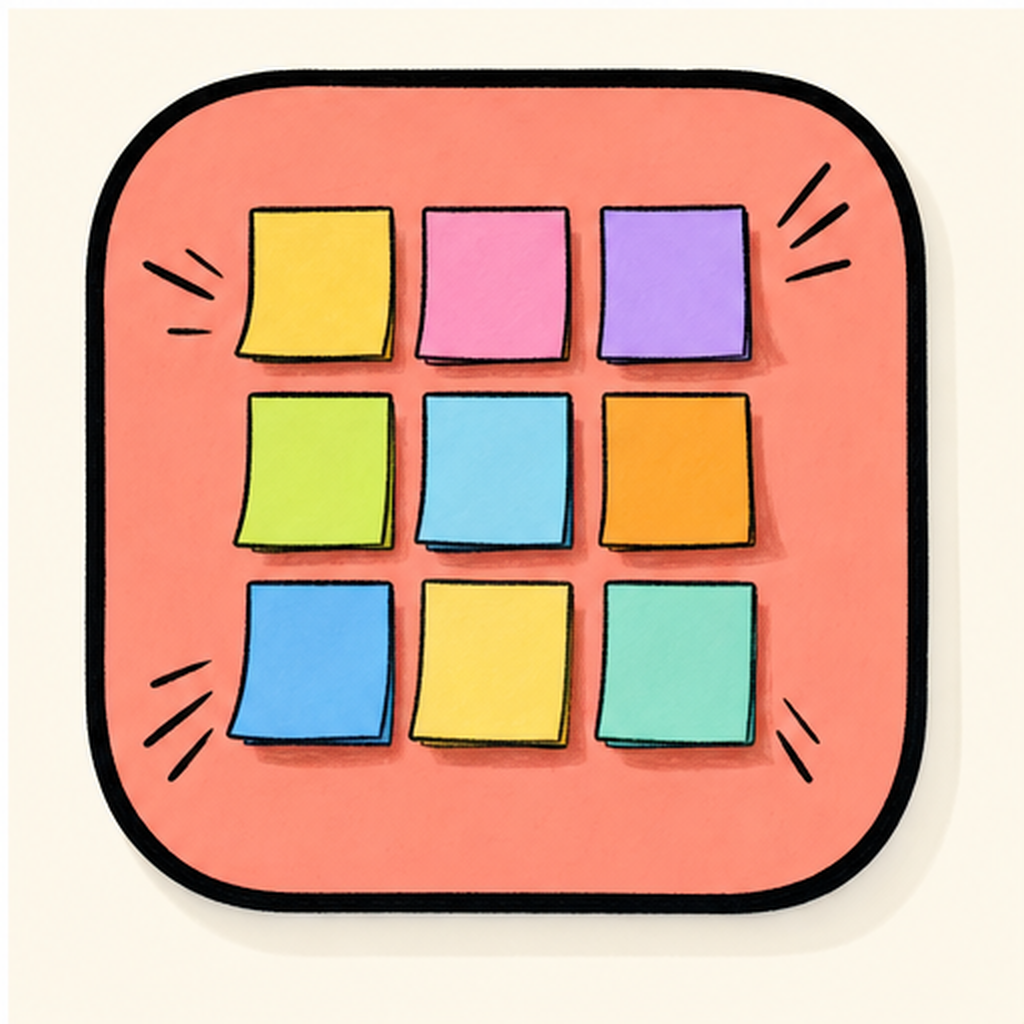
This is also what makes finals desktops screenshot well. The best ones are not overloaded. They look calm because they are composed.
Try this layout:
- left side: one folder for this week,
- center or lower area: one anchor image or wallpaper space,
- right side: nothing unless it is genuinely active.
That is it. Finals week is not the moment for fifteen decorative elements competing with your chemistry notes.
3. Replace vague motivation with obvious study sprints
A lot of people build "productive" Mac setups that are secretly just procrastination cosplay. Nice wallpaper, nice fonts, nice widgets, zero actual cue to begin working.
The smarter trend is study sprints with visible boundaries. Instead of asking yourself whether you feel ready, you open the Mac, see one task, run one timer, and begin.
FocusBubble works well here because it gives you a simple focus ritual without turning the whole screen into enterprise software. It feels lighter than a massive task manager, which is exactly what finals week needs. You do not need a new life system. You need a clean start button.

The aesthetic value matters too. Finals-week setups are popular because they make discipline feel less harsh. A soft, tidy timer cue is easier to return to than a brutal dashboard full of overdue labels.
4. Pick one mood and let it carry the week
The reason these setups are trending is not just utility. It is emotional coherence.
Every good finals-week MacBook setup has a mood. Usually it is one of these:
- library-core and neutral,
- soft pastel with low contrast,
- rainy-night study energy,
- retro pixel desk,
- caffeine-and-highlight-yellow chaos, but organized.
What you do not want is three moods at once. If the wallpaper says calm lavender, the clock says arcade neon, and your folders are bright green and red, your brain reads the whole thing as noise.
That is why a lot of study creators are drifting toward smaller, more unified tweaks instead of giant customization packs. One clock style. One layout system. One color family. Maybe one cute detail. Done.
| vs. | FocusBubble | PixelClock |
|---|---|---|
| Name | FocusBubble | PixelClock |
| Tier | Lite + Pro | Free |
| Price | Free / $5 Pro | Free |
| Category | Productivity | Utilities |
| Tags | focus · pomodoro · timer | clock · pixel · retro |
Consistency is what makes a setup feel expensive, even when the tools are free.
5. Make the setup easy to reset at 2 a.m.
A finals-week desktop is only good if it still works when you are tired.
This is the part aesthetic posts usually skip. Your setup should survive the exact moment when you finish one assignment at 1:47 a.m., download six new files, change plans twice, and suddenly cannot remember where anything went.
So build for reset speed.
Ask yourself:
- Can I clear this desktop in under a minute?
- Can I tell what matters first at one glance?
- Can I start a 25 or 50 minute session without opening five apps?
- Does this setup make me calmer, or just more impressed with myself for five minutes?
If the answer to that last one is "honestly, the second," simplify.
The most effective finals desktops are never the busiest ones. They are the ones that leave you enough mental room to do the actual work.
A simple finals-week stack that works
If you want a version you can build tonight without overthinking it:
- Use PixelClock so time is visible and on-theme.
- Use SnapGrid to keep one clean zone for active class files.
- Use FocusBubble for short, repeatable study sprints.
- Keep one wallpaper, one color story, and one empty area on the desktop.
That is enough to make your Mac feel intentional instead of frantic.
/// pros
- Makes deadlines feel visible without turning the desktop into a stress poster
- Keeps active study files organized and screenshot-friendly
- Helps you start focused sessions faster with less mental friction
/// cons
- Over-customizing can become procrastination in a cute outfit
- Too many visible files will kill the calm instantly
- A good setup still needs a quick nightly reset
The finals week MacBook setup trend is landing because it is not really about looking productive. It is about making your screen easier to trust when your week gets messy.
If you want your laptop to feel less like a panic tab farm and more like a place where work actually gets done, start with FocusBubble, SnapGrid, and PixelClock on mac-neo. Cute is nice. Calm and usable is better.