Why widgets are back on MacBook setups
In 2026, Mac desktop widgets are having a very real comeback. You can see it across study-with-me videos, dorm desk tours, and aesthetic setup posts. People still want clean wallpapers and cozy color palettes, but they also want their desktop to do something useful the second they open the lid.
That is why widgets feel fresh again. They add low-friction information without making your Mac look like a project management dashboard. A good widget setup should answer a few fast questions. What time is it. What is the weather vibe. How much battery do I have left before my cafe session turns into a charger hunt.
That matters even more for people whose MacBook moves through multiple moods in one day. The same laptop might be a lecture notes screen in the morning, a cafe work machine in the afternoon, and a late-night streaming and journaling device after midnight. Widgets help the desktop shift with you without forcing a full reset every time.
The important part is restraint. The best MacBook setups do not use ten widgets. They use two or three that feel intentional.
1. Build around one anchor widget
Every strong widget layout starts with one visual anchor. Usually that is a clock, weather block, or battery view.
For most aesthetic study setups, clock wins.
A clock widget gives your desktop structure without feeling noisy. It also photographs well, which is partly why retro-digital layouts are trending again. PixelClock is a great fit for that look. It adds instant identity to a wallpaper, especially if you like clean, minimal, or Y2K-inspired setups.
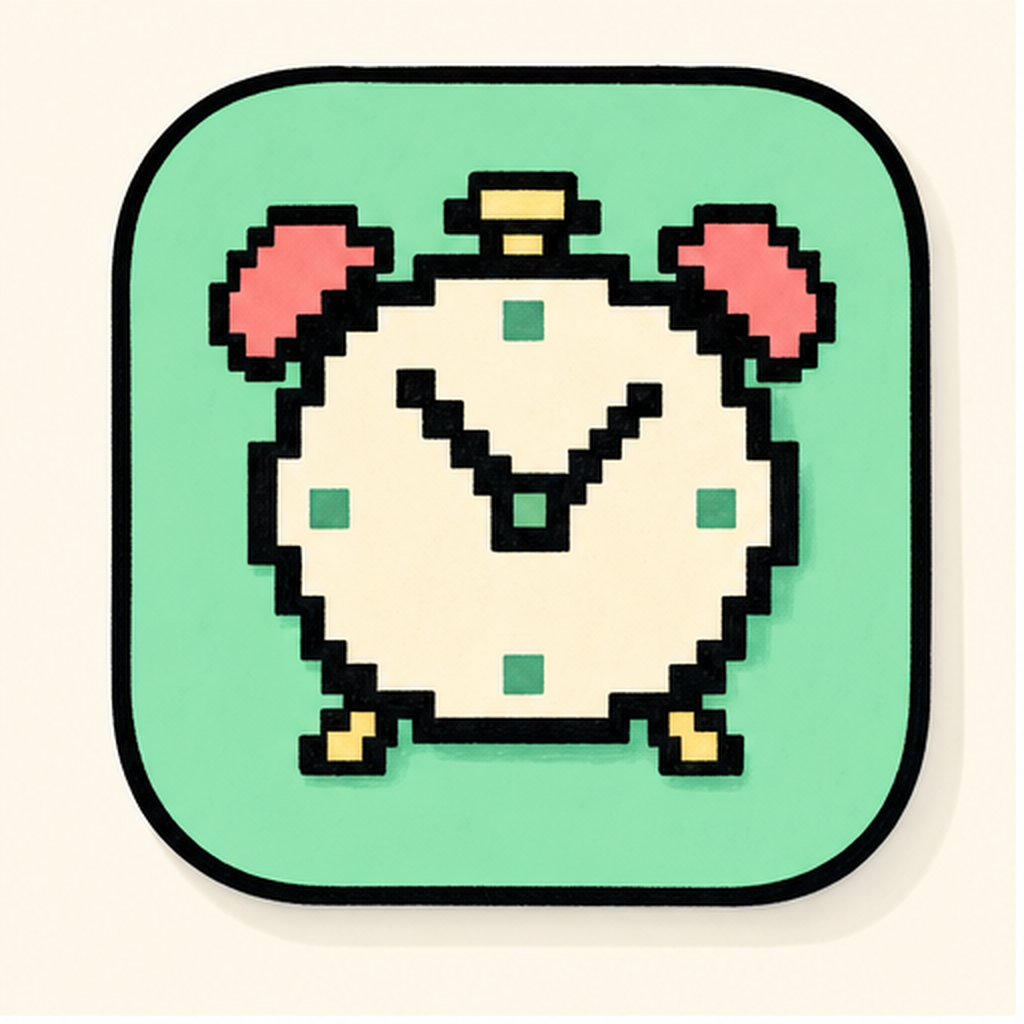
The nice thing about a clock-style widget is that it looks decorative even when it is doing a basic job. It makes your Mac feel styled, not just decorated. That difference matters.
2. Weather widgets make the desktop feel alive
The next-best widget category is weather. It is practical, but it also adds mood.
A weather widget changes with the day, so the desktop feels less static. That sounds small, but it matters for people who spend hours studying on one screen. Dynamic details keep a setup from feeling stale.
WeatherPet works well here because it turns forecast info into something playful instead of clinical.

That playful layer is exactly why cute utilities keep winning on Mac. If an app feels warm, you will actually keep it on-screen. And if you keep using it, it becomes more than decoration.
3. Battery visibility is the underrated productivity move
Aesthetic setup content loves the pretty part of desktop customization, but real life is battery anxiety.
If you study in libraries, cafes, or classrooms, battery is one of the few things worth checking every day. A battery-focused widget helps you avoid surprise shutdowns and weird mid-session stress.
ChargePet makes this kind of monitoring feel friendlier. Instead of another dry system readout, you get a little personality with the information.

That is a smart trade. You stay more aware of your battery because the interface feels inviting rather than technical.
4. Placement matters more than people think
A widget is part of the wallpaper composition. If you ignore that, even good widgets look messy.
A simple rule helps a lot: place widgets where your wallpaper already has empty space. If the subject of your wallpaper sits in the center, keep your widget off to the side. If the wallpaper is already busy, use simpler widgets. If the wallpaper is very plain, one statement widget can do a lot.
A nice layout usually looks like this:
- one main anchor widget,
- one small support widget,
- lots of breathing room.
That last part matters. Empty space is what makes a Mac setup feel premium.
Another underrated trick is matching widget color to wallpaper temperature. Cooler wallpapers usually look cleaner with white, blue, or gray widget accents. Warmer wallpapers pair better with cream, peach, or soft retro tones. You do not need to obsess over this, but when the colors click, the whole desktop suddenly feels more expensive.
| vs. | PixelClock | WeatherPet |
|---|---|---|
| Name | PixelClock | WeatherPet |
| Tier | Free | Free |
| Price | Free | Free |
| Category | Utilities | Weather |
| Tags | clock · pixel · retro | weather · pet · character |
5. Widgets work best when they reduce decision fatigue
This is the real reason the trend has legs. Good widgets are not just cute. They reduce tiny moments of friction.
When time is visible, you stop opening your phone just to check the hour and accidentally falling into notifications. When weather is visible, you do not waste mental energy guessing what to wear before class. When battery is visible, you decide earlier whether you need Low Power Mode, a charger, or a table near an outlet.
Those are tiny wins, but study setups are built on tiny wins. A smoother start often matters more than some giant productivity system you only use for three days.
That is also why Mac widgets fit so well with the current soft-productivity mood. People want tools that guide them gently. They do not want a desktop covered in urgent red badges and stressful panels. They want calm information in places their eyes already go.
6. Pick widgets that support your routine
The best widgets are not the ones with the most features. They are the ones that make your actual day easier.
For a study setup, that usually means:
- a clock to keep time visible,
- weather so you can plan your day fast,
- battery so your session does not end early.
That trio works because each piece does a different job. One gives structure, one adds mood, one protects your workflow.
/// pros
- Looks aesthetic without losing function
- Makes the desktop feel more personal
- Adds useful at-a-glance info
/// cons
- Too many widgets kill the vibe
- Busy wallpapers need simpler placements
7. The easiest widget stack to copy
If you want a setup that feels current right away, start here:
- Use PixelClock as your visual anchor.
- Add WeatherPet for forecast and atmosphere.
- Keep ChargePet around for battery awareness.
That combination is simple, cute, and actually helpful. It makes your MacBook feel more alive without covering your wallpaper in noise.
The bigger trend is not widgets for the sake of widgets. It is low-friction personalization. Mac users want desktops that look like them and help them at the same time.
And honestly, that is why this trend feels more durable than random wallpaper fads. A good widget stack still looks good in screenshots, but it also improves the boring parts of everyday laptop life. You check your screen faster, plan your next hour faster, and stay in flow a little longer.
If your current setup feels a little flat, this is an easy upgrade. Start small, keep the layout clean, and build a desktop you genuinely want to come back to. Browse the full stack on mac-neo and test the mix that matches your study rhythm and your vibe.